How to Build and Manage Bitvoice WhatsApp Campaigns

India’s First TEC-Approved Analog Gateway – Why BVS1000 Beats Generic FXS
January 18, 2026Running successful WhatsApp campaign management doesn’t have to be complicated. Whether you’re a small business owner in India looking to send promotional offers or an enterprise managing thousands of customers, understanding how to properly create and manage WhatsApp campaigns is crucial for your marketing success. In this comprehensive guide, I’ll walk you through every step of building, launching, and optimising WhatsApp campaigns using the BitVoice platform.
Why Should You Use WhatsApp for Campaign Management?
WhatsApp has become India’s most trusted messaging platform, with over 500 million active users. Unlike email marketing where open rates hover around 20%, WhatsApp messages achieve an impressive 98% open rate. This makes it one of the most effective channels for reaching your customers directly.
With the WhatsApp Business API, you can send bulk campaigns to thousands of contacts whilst maintaining compliance with Meta’s policies. The key is using the right platform that makes campaign management straightforward and efficient.
What Do You Need Before Creating a WhatsApp Campaign?
Before you jump into creating your first campaign, you’ll need a few things in place. First, you must have a WhatsApp Business API account connected to your platform. This isn’t the same as the regular WhatsApp Business app — the API is specifically designed for bulk messaging and automation.
You’ll also need approved message templates. WhatsApp requires all promotional and marketing messages to use pre-approved templates to prevent spam. Additionally, you should have a contact list with phone numbers and customer names ready for upload.
Understanding your account’s messaging limits is crucial. Unverified accounts can send up to 250 messages per day, whilst verified accounts can send up to 1,000 messages per day. As your quality rating improves, these limits increase significantly.
How to Create Your First WhatsApp Campaign
Creating a campaign on the BitVoice whatsApp platform is remarkably straightforward. Let me break down the process into simple, actionable steps.
Step 1: Navigate to the Campaign Section
Log into your BitVoice dashboard and click on the Campaigns option from the main menu. You’ll see a list of any existing campaigns along with a prominent “Create New Campaign” button.
Step 2: Name Your Campaign
Give your campaign a descriptive name that helps you identify it later. For example, “Diwali Sale 2026” or “New Product Launch – January”. This becomes especially important when you’re managing multiple campaigns simultaneously.
Step 3: Select Your Approved Template
From the template dropdown, choose the pre-approved template you want to use for this campaign. Only templates with “Approved” status will appear in this list. You’ll see a preview of how the message will look to your customers.
Step 4: Configure Batch Settings
Here’s where campaign management gets strategic. Set your batch size based on your account’s verification level. If you’re verified for 1,000 messages per day and want to send to 2,000 contacts, you might set a batch size of 500 messages.
You can also configure the delay between batches. The default setting works well for most campaigns, but you can adjust it if you’re concerned about hitting rate limits.
Step 5: Upload Your Contact List
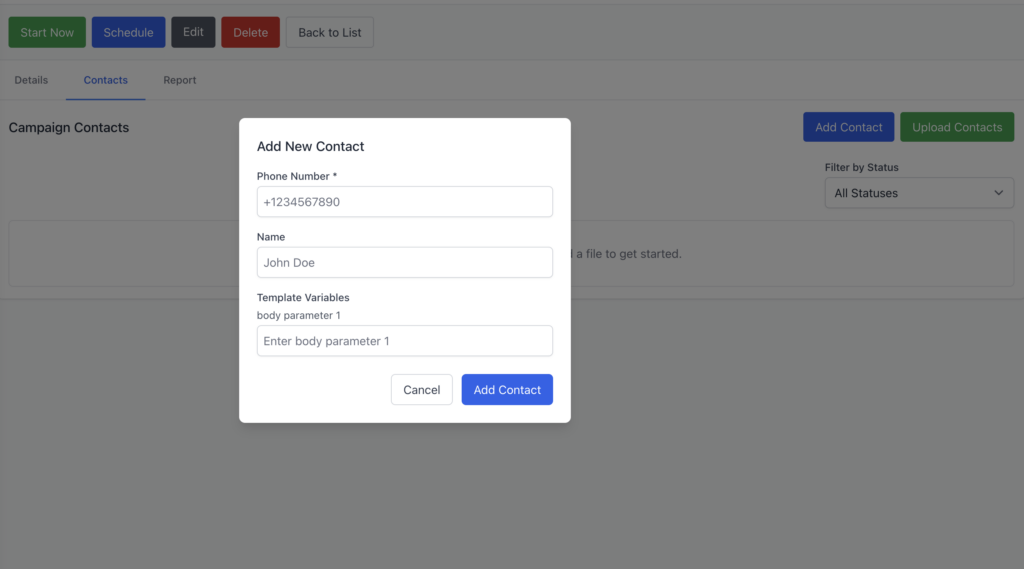
This is where your campaign comes to life. Click on the “Contacts” tab and you’ll have two options: upload contacts in bulk via Excel, or add them individually through the interface.
How to Manage Contacts for WhatsApp Campaigns?
Contact management is the backbone of successful WhatsApp campaigns. The BitVoice platform makes this process incredibly efficient.
Bulk Contact Upload via Excel
Prepare an Excel spreadsheet with at least two columns: Phone and Name. The phone numbers should include the country code (e.g., 91 for India) without any special characters or spaces.
If your template includes variables like images or custom fields, add additional columns with the corresponding data. For instance, if you’re sending product images, create a column called “Image URL” with links to your media files.
Once you upload the file, the platform automatically maps the columns to the template variables. You’ll see a preview showing exactly how many contacts were successfully uploaded. The system displays each contact’s status as “Pending” until the campaign is launched.
Adding Individual Contacts
For smaller campaigns or quick additions, you can manually add contacts one by one. Simply enter the phone number and name, and the contact is immediately added to your campaign list.
Managing Media Files
If your templates include images, videos, or documents, you’ll need to upload these to the Media folder first. Once uploaded, the platform generates URLs for each file that you can reference in your Excel sheet or template variables.
How to Schedule WhatsApp Campaigns?
Timing is everything in campaign management. The BitVoice platform offers flexible scheduling options that let you send messages when your audience is most likely to engage.
Send Immediately
If you want your campaign to go out right away, simply click the “Start Now” button. The platform begins processing contacts in batches according to your configured settings, and messages start delivering within minutes.
Schedule for Later
For campaigns you want to send at a specific time, click the “Schedule” option instead. A date and time picker appears where you can set exactly when you want the campaign to launch. This is particularly useful for:
- Early morning flash sales that go live at 6 AM
- Evening promotional messages when people are browsing their phones
- Weekend offers that align with shopping patterns
- Time-zone specific campaigns for different regions
Once scheduled, your campaign appears in the dashboard with a “Scheduled” status indicator showing the planned launch time.
How to Track Campaign Performance?
Launching your campaign is just the beginning. Tracking performance helps you understand what’s working and what needs improvement.
Real-Time Campaign Monitoring
The campaign dashboard shows live updates as messages are being sent. You can see:
- Total contacts in the campaign
- Messages sent successfully
- Messages delivered to recipients
- Messages read by customers
- Failed messages with error reasons
Each contact’s status updates in real-time, changing from “Pending” to “Sent” to “Delivered” to “Read”. This granular visibility helps you quickly identify and address any delivery issues.
Campaign Reports and Analytics
After your campaign completes, access detailed analytics through the Analytics Dashboard. Filter by date range to see metrics like:
- Overall delivery rate
- Message read percentage
- Customer response rate
- Template performance comparison
You can export these reports to PDF format for sharing with your team or stakeholders. The graphical representations make it easy to spot trends and patterns in customer engagement.
What Are WhatsApp Campaign Best Practices?
I’ve managed hundreds of WhatsApp campaigns, and these best practices have consistently delivered the best results.
Always Get Explicit Consent
Never send campaigns to contacts who haven’t opted in to receive WhatsApp messages from you. This isn’t just good practice — it’s a requirement under WhatsApp’s policies and India’s data protection regulations. Use website forms, landing pages, or in-store sign-ups to collect proper consent.
Personalise Your Messages
Generic “Dear Customer” messages feel robotic and impersonal. Use template variables to include the recipient’s name, previous purchase history, or location-specific offers. Personalised messages achieve up to 5 times higher engagement rates.
Respect Message Frequency
Don’t bombard customers with daily messages. I recommend spacing campaigns at least 3-4 days apart unless you have time-sensitive offers. Monitor your quality rating in the WhatsApp Manager — frequent complaints or blocks will lower your rating and reduce your sending limits.
Test Before Full Rollout
Always send test messages to yourself or team members before launching to your full contact list. This helps you catch formatting errors, broken links, or missing variables that could embarrass your brand.
Segment Your Audience
Don’t send the same message to everyone. Create different campaigns for different customer segments based on their purchase history, location, or engagement level. A customer who bought from you last week needs a different message than someone who hasn’t engaged in three months.
Include Clear Call-to-Actions
Every campaign should have a clear next step. Whether it’s “Shop Now,” “Book Appointment,” or “View Offer,” make it obvious what you want recipients to do. WhatsApp templates support button CTAs that make this seamless.
How to Handle Campaign Duplication and Reuse?
Running recurring campaigns becomes much easier when you can reuse successful templates and settings.
Duplicate Existing Campaigns
When you find a campaign that performs well, you don’t need to recreate it from scratch. Simply use the “Duplicate” option from the campaign menu. This creates an exact copy with all settings, templates, and configurations preserved.
You can then modify the duplicated campaign — update the name, change the schedule, or upload a new contact list. This saves tremendous time when running similar campaigns to different audience segments or at different times.
Understanding Campaign Status
Once a campaign is completed, the “Upload Contacts” button becomes disabled. This prevents accidental modifications to completed campaigns. If you need to send to additional contacts, duplicate the campaign and upload your new list.
What Common Mistakes Should You Avoid?
I’ve seen businesses make the same campaign management mistakes repeatedly. Here’s what to watch out for:
Ignoring Account Verification
Unverified accounts are limited to just 250 messages per day. Complete your Facebook Business verification to unlock higher limits. This involves submitting business documents and completing two-factor authentication, but it’s worth the effort.
Using Unapproved Templates
Templates must be approved by Meta before you can use them in campaigns. Creating and submitting templates takes 24-48 hours for approval, so plan ahead. Don’t create your template the same day you want to launch your campaign.
Neglecting Quality Rating
Your quality rating affects your sending limits. If customers frequently block your number or report your messages as spam, your rating drops to “Low” and Meta reduces your daily limits. Focus on sending valuable, relevant content that recipients actually want.
Not Monitoring Delivery Reports
Some businesses launch campaigns and never check the results. This is a missed opportunity to learn and improve. Review delivery reports, identify failed messages, and understand why some messages didn’t reach recipients.
Sending Without Testing
I can’t stress this enough — always test your campaigns first. Send to a small group of internal team members, verify that variables populate correctly, check that links work, and ensure images display properly.
How to Manage Template Creation for Campaigns?
Templates are the foundation of your WhatsApp campaigns. Understanding how to create and manage them effectively is crucial.
Creating New Templates
Navigate to Communication > Templates in your dashboard. Click “Create New Template” and you’ll see options for:
- Template Name: Choose a descriptive name for internal reference
- Category: Select either Marketing or Utility based on your message type
- Language: Choose from multiple languages including English, Hindi, and regional Indian languages
- Header: Optional header that can include text, image, video, document, or location
- Body: The main message content with variable placeholders like {{1}}, {{2}}
- Footer: Optional footer text for disclaimers or unsubscribe information
- Buttons: Call-to-action buttons like “Visit Website” or “Call Now”
After creating your template, it shows a “Pending” status whilst Meta reviews it. Most templates are approved within 24 hours, though some may take longer. Once approved, the status changes to “Approved” and you can use it in campaigns.
Template Variable Mapping
Variables make your templates dynamic and personalised. When you upload contacts via Excel, you’ll map spreadsheet columns to template variables. For example, if your template says “Hi {{1}}, your order {{2}} is confirmed,” you’d map column “Name” to {{1}} and column “Order ID” to {{2}}.
How Can You Scale Your Campaign Operations?
As your business grows, you’ll need to manage multiple campaigns efficiently.
Multi-User Access
The BitVoice platform supports multiple user accounts with different permission levels. Create Admin accounts for team members who need full access to campaigns, analytics, and settings. Create User accounts for team members who only need chat access for customer support.
Campaign Calendar Planning
Plan your campaigns in advance using a content calendar. Schedule campaigns around key dates like festivals, paydays, weekends, and special occasions. This ensures consistent communication without overwhelming your audience.
Automated Follow-Up Sequences
Consider creating campaign sequences where multiple messages are sent over time. For example, send an initial promotional message, followed by a reminder three days later, and a final “last chance” message before the offer expires.
What Integration Options Are Available?
The BitVoice platform offers integration capabilities that enhance your campaign management.
Webhook Integration
Set up webhooks to forward campaign responses to your CRM, Salesforce, or custom applications. This creates a seamless flow of data between WhatsApp and your existing business systems.
API Access
For businesses with custom requirements, the platform provides API access to trigger campaigns programmatically, upload contacts dynamically, and retrieve campaign analytics through code.
How long does it take for WhatsApp templates to get approved?
Can I send campaigns to contacts who don’t have my number saved?
What happens if I exceed my daily messaging limit?
How do I improve my WhatsApp account’s quality rating?
Can I schedule campaigns for different time zones?
Ready to Launch Your First WhatsApp Campaign?
WhatsApp campaign management doesn’t have to be overwhelming. With the right platform and these best practices, you can create engaging campaigns that drive real business results.
The BitVoice platform simplifies every aspect of campaign management — from template creation and contact upload to scheduling and analytics. Whether you’re sending your first campaign or managing hundreds of them, the intuitive interface ensures you can focus on crafting great messages rather than wrestling with complicated software.
Start with small test campaigns, learn from the analytics, and gradually scale your operations. Remember, successful WhatsApp marketing is about building relationships with your customers, not just broadcasting promotional messages.