The IVR greeting is the first thing most callers hear from your business. A clear, warm, short greeting sets up the whole call. A long, mumbled or outdated one makes callers press 0, hang up or arrive at an agent already irritated. This guide gives ready IVR greeting script examples for welcome messages, menus, after-hours, holidays and queues, plus tips for writing and recording professional IVR voice prompts and loading them into your phone system.
What makes a good IVR greeting script
Good IVR messages share a few habits:
- Short. Callers want to reach someone. Aim for a welcome of under 10 seconds and a menu of no more than four or five options.
- Action first. Say the reason, then the key: “For sales, press 1”, not “Press 1 for sales”. Callers listen for their need, then the number.
- Most common option first. If most callers want support, put support at 1.
- Plain words. No internal department names, no jargon.
- One voice, one style. Every prompt in the system should sound like the same person and the same business.
- Up to date. A greeting that mentions last year’s offer or a closed branch tells callers nobody is paying attention.
If you are still designing the menu itself, start with IVR call flow design. This post is about the words and the recordings.
IVR greeting script examples
Use these as a starting point and change the details for your business.
| Prompt | Sample script |
|---|---|
| Welcome | Thank you for calling Sunrise Diagnostics. Your call may be recorded for quality and training. |
| Main menu | For appointments, press 1. For reports, press 2. For billing, press 3. To speak to the front desk, press 0. |
| Invalid entry | Sorry, that is not a valid option. Please try again. |
| No input | We did not receive your choice. Connecting you to the front desk. |
| After-hours | Thank you for calling. Our office is open Monday to Saturday, 9 am to 7 pm. You can message us on WhatsApp at this number, and we will reply when we open. |
| Holiday | Our office is closed today for the festival holiday. We reopen tomorrow at 9 am. For urgent help, please message us on WhatsApp. |
| Queue (first message) | All our team members are helping other customers. Please stay on the line and the next available person will take your call. |
| Queue (repeat) | Thank you for waiting. You are important to us and we will be with you shortly. |
| Callback offer | If you prefer, you can hang up and we will call you back on this number. |
A note on the callback line: only use it if your system actually calls back missed callers. In Voxdial Contact Center, auto callback and the missed call worklist handle this, so the promise is kept. See missed call management.
Department and branch examples
- Multi-branch: “For our Andheri branch, press 1. For Thane, press 2. For Pune, press 3.”
- Sales line: “Thank you for calling. To book a free demo, press 1. For pricing and quotes, press 2. For an existing order, press 3.”
- Support line: “To report a new problem, press 1. To check an existing request, press 2. For anything else, press 0.”
Writing tips that save callers time
- Read the script aloud with a stopwatch. If the welcome plus menu runs past 25 to 30 seconds, cut it.
- Do not read out the website. “Visit our website at w w w dot…” is slow and nobody remembers it. If you must point elsewhere, use WhatsApp: “You can also message us on WhatsApp at this number.”
- Avoid “please listen carefully as our options have changed” unless they really changed this week.
- Put legal notices in one short line. “Your call may be recorded for quality and training” is enough for most businesses. Our DPDP Act and call recording guide explains notice in more detail.
- Keep the 0 option. Always give callers a way to a person.
Recording professional IVR voice prompts
You have three ways to get recordings:
| Option | Good for | Watch out for |
|---|---|---|
| Staff member | Small offices, quick changes | Background noise, uneven volume between prompts |
| Professional voice artist | Main greeting and menus | Cost and turnaround for every later change |
| Text to speech | Frequent changes, many languages | Choose a natural voice and check pronunciation of names |
Whichever you choose, follow a few basics:
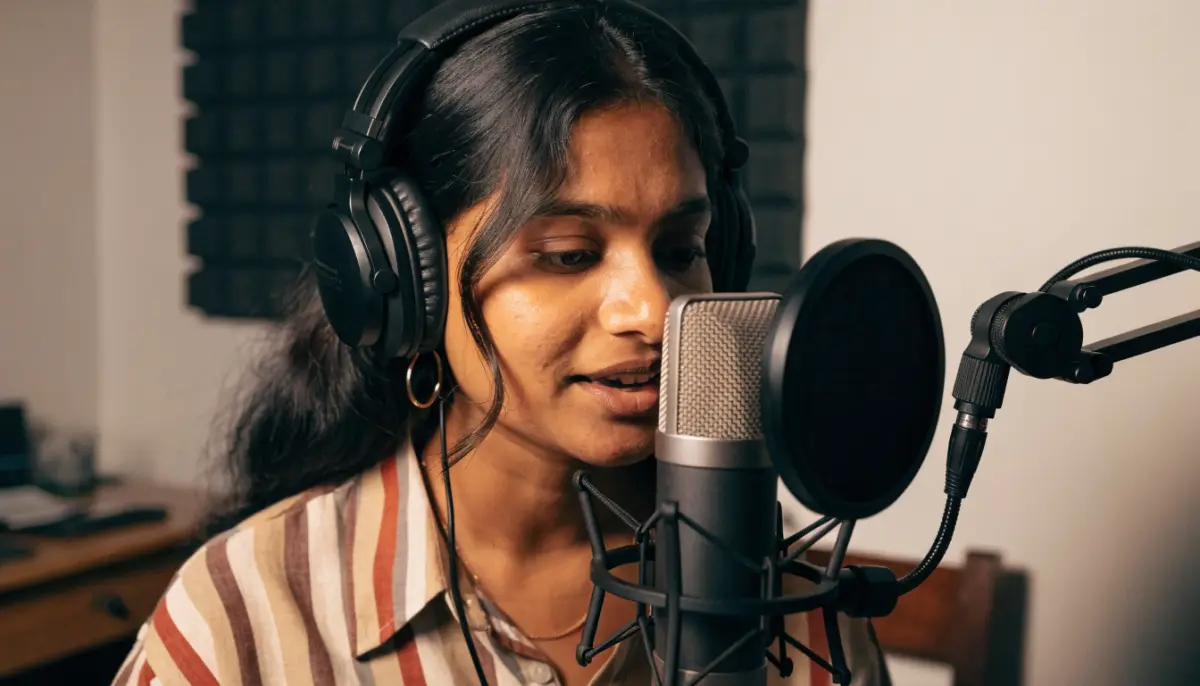
- Record in a quiet room with soft furnishings, not an echoing cabin.
- Keep the mouth a hand’s width from the microphone and speak slightly slower than normal.
- Leave half a second of silence at the start and end of each file.
- Record all prompts in one session so the voice, pace and volume match.
- Name each file clearly, such as “main-menu-v2” or “diwali-closure”, so the right prompt is easy to find later.
Loading prompts into the phone system
On the Voxdial IP PBX, voice files live in System Recordings. You upload an audio file, give it a clear name and an optional description, and the system converts it into the formats the phone system needs. That recording then appears in the list when you build an IVR menu, set an announcement or choose timeout and invalid-entry prompts.
An Announcement plays a recording and then sends the caller on to a destination, which is the right tool for a recording notice, a holiday message or a short service alert. You can set how many times it repeats and whether the caller may press a key to skip it. Time Conditions switch callers between the daytime menu and the after-hours message automatically, based on the office hours you define. See time-based call routing for how to set business hours and holidays.
One caution from the manual: if you delete a recording that an IVR or announcement still uses, that feature is left without a prompt. Replace the file through Edit instead of deleting it.
Keep prompts in more than one language
If many of your callers prefer Hindi or a regional language, record each prompt in each language and offer a language choice at the start. Our guide to multilingual IVR covers how to structure it.
Need help writing or setting up your IVR prompts? Talk to BitVoice and we will review your call flow with you.
FAQs
What should an IVR greeting say?
Your business name, a short welcome, a one-line recording notice if you record calls, and then the menu options, with the most common need first and a 0 option for a person.
How long should an IVR greeting be?
Keep the welcome under 10 seconds and the whole welcome plus menu under about 30 seconds. Shorter greetings mean fewer callers pressing 0 or hanging up.
Can I use text to speech for IVR prompts?
Yes. Text to speech is useful when messages change often or you need several languages. Pick a natural voice and listen to every prompt to check names and numbers.
How do I change an IVR recording on Voxdial?
Upload the new audio in System Recordings, or use Edit on the existing recording to replace its file, so every IVR and announcement using it picks up the new version.